 Beam
Beam Capture and type
Notes
Markdown notes that open fast and stay out of the way.
Capture
- Type
note buy milkin the launcher. Choose Save Note or Save and Open. - Press your Quick Note hotkey (none by default, set one in Settings → General → Quick Access), choose Quick Note in the menu bar, or open
beam://notes.
The notes window
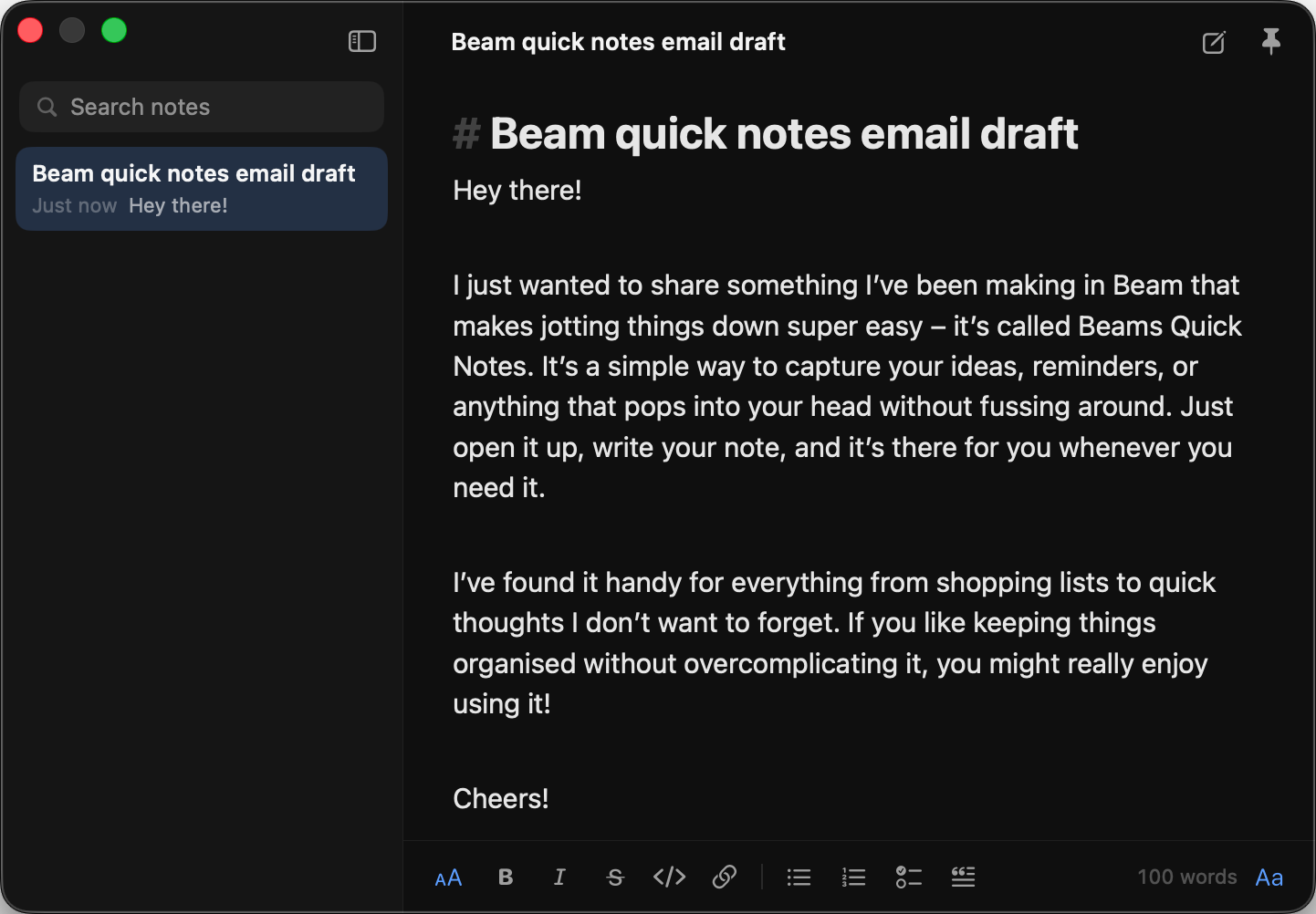
A floating panel with a sidebar list and search. Notes can be pinned (they move to a pinned section). Right-click a note for Pin, Open in New Window, Copy Markdown and Delete. Use the pin control to keep the window on top. Font choices are Sans, Serif and Mono, sizes 11 to 24. A word count shows at the bottom.
Markdown that styles as you type
Headings (# to ###), quotes, clickable checklists, lists (Return continues them), bold, italic, strikethrough, inline code, links, bare URLs, code fences and rules.
| Key | Does |
|---|---|
| ⌘B | Bold |
| ⌘I | Italic |
| ⇧⌘X | Strikethrough |
| ⌘E | Inline code |
| ⌘K | Link |
| ⌘1 to ⌘3 | Headings |
| ⇧⌘8 | Bullet list |
| ⇧⌘7 | Numbered list |
| ⇧⌘L | Checklist |
| ⇧⌘. | Quote |
| ⌘F | Find |
| ⌘N | New note |
Settings → Notes
Turn notes on or off, see how many notes and pinned notes you have, open the window or start a new note, pick the font and size with a live preview, and read a Markdown cheat sheet. The Notes hotkey is recorded in Settings → General → Quick Access.
AI on a selection
Select text and an AI bar appears with Explain, Shorten, Fix grammar, Translate to English and a custom instruction.
Notes are stored in the same local database as your other Beam data and are searchable from the launcher. AI tools can search and create notes when you allow them.